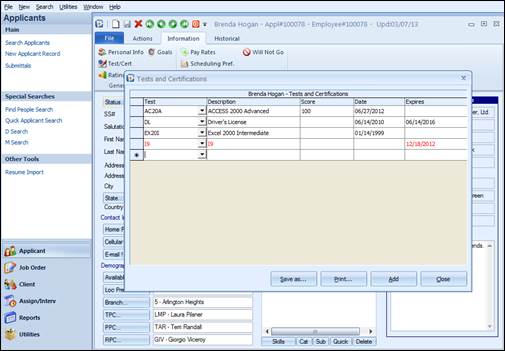
The Tests and Certifications option is used to view or record information on tests that the applicant has taken, or certifications for which they are approved.
The screen contains the following fields in columnar format: Test Name, Description, Score, Date and Expires.
Tests and Certifications screen
Test Name: Tests or certifications can be keyed in under the Test column or automatically by selecting from a list box in the Test field. To select from the list box, click in the Test field and then click on the pull-down arrow to display the list view of tests. To select a test, click to highlight the desired test.
Description: Descriptions will automatically prefill when a test is chosen from the drop down list.
Score: Enter the score the applicant received on the test. Scores may be alpha/numeric. Press the TAB key to move to the Date field.
Date: This is the date the test was taken. Clicking the drop down arrow on the right of the field will display a calendar for date selection. Press TAB to move to the Expires field.
Expires: This is the date the test or certification expires. Clicking the drop down arrow on the right of the field will display a calendar for date selection. This is a searchable field and can be used to send out letters reminding candidates that certain certifications have expired, or will expire in the near future. If a certification has expired, it will be displayed in a red font.
Save as…: Allows the worksheet to be saved in another area of the network or hard drive.
Print: Opens a Print Preview screen with the Test Information. This can be printed or exported.
Add: Opens a look up window allowing for the selection of any test, to be added to the Applicant’s Test screen.
Close: Exits the Tests screen and saves any new or changed information. You may also close by clicking “X” in the upper right hand corner of the Tests screen.